
Email to SMS
Send SMS through your email client such as Outlook and gmail.
»
Updated over a week ago
Email to SMS Setup and Sending Options
Send SMS through your email client such as Outlook and gmail. In order to use Email to SMS, you will need to ensure it is enabled in your account.
To Enable Email to SMS, go to;
Enable Email to SMS
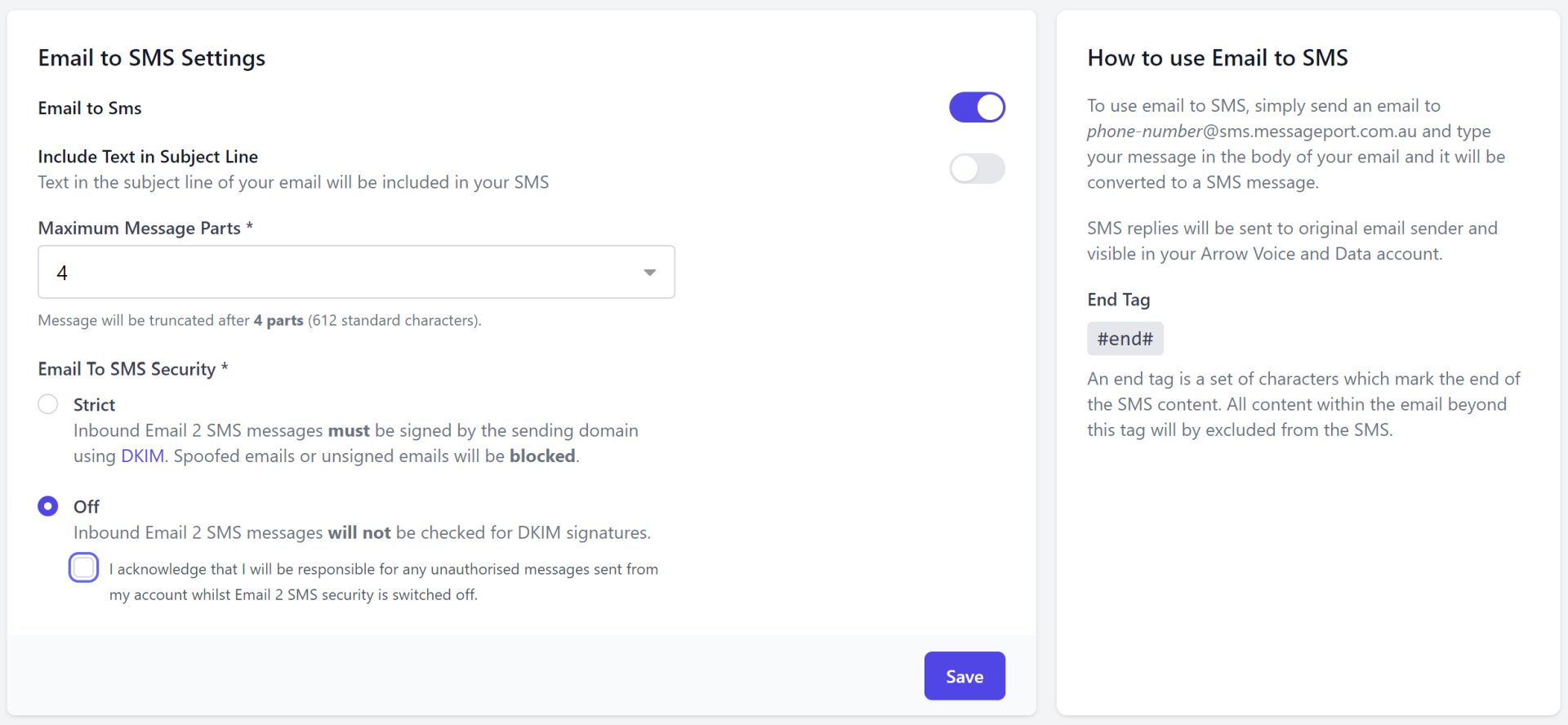
1. Settings > Email to SMS
2. Ensure that the Email to SMS toggle is ON.
3. Include Text in Subject Line is optional. By default this is disabled however if you enable this setting, text in the subject line of your email will be included in your SMS.
4. Confirm Maximum Message Parts – set to 4 by default.
Tip: Maximum Message Parts allow you to limit the length of an SMS sent via Email to SMS. By default, this is set to 4 message parts. If you exceed the parts limit when sending Email to SMS, the system will cut off your message as the max part limit.
5. Email To SMS Security – set to Strict by default.
This setting prevents hackers from spoofing your email address and sending email to SMS without your consent.
5. Click Save.
Email to SMS Sending Options
1. Click the ellipsis next to the registered email address and select Edit
2. Use the Default Sender ID dropdown to select the Sender ID for messages sent from this email address.
3. Click Save.
Registering Other Email Addresses for Email to SMS
You can register as many email addresses to send Email to SMS as you like. Simply click + Add Email Address from the Email to SMS Settings page.